Step 8: Setup Payment Gateway
RestroPro SaaS supports multiple payment gateways for subscription management. Configure your preferred gateway(s) below. You can enable Stripe (global) and/or Paystack (African markets) depending on your target regions.
Stripe
Stripe is a global payment gateway supporting multiple currencies and regions.
Step 1: Access Stripe Configuration
- Navigate to your Super Admin portal at
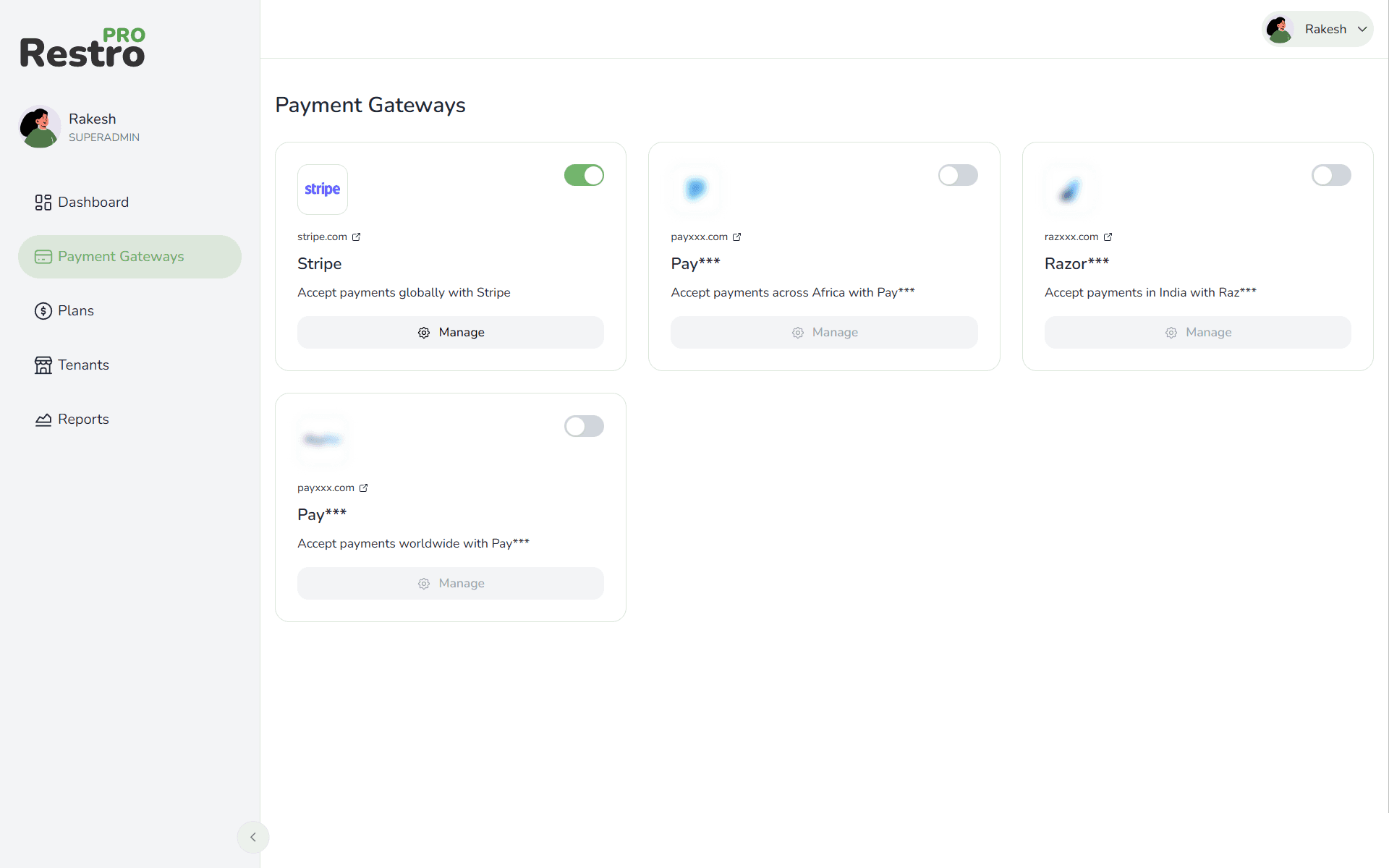
https://yourdomain.com/superadmin/dashboard/payment-gatewaysand log in with your Super Admin credentials - In the Super Admin dashboard, locate and click on Payment Gateways in the navigation menu
- Click on Stripe from the list of available payment gateways
- You will be presented with a form to configure Stripe credentials
Step 2: Get and Configure Stripe API Keys
- Log in to your Stripe Dashboard at https://dashboard.stripe.com.
- Switch to the correct mode (Test or Live) as needed.
- Go to Developers → API keys in the sidebar, and copy your Publishable key and Secret key (use “Reveal” to view the secret key).
- In your Super Admin portal’s Stripe configuration form, paste both keys into their respective fields.
- Copy the Webhook URL from the same form for use in the next step.
Step 3: Set Up Stripe Webhook
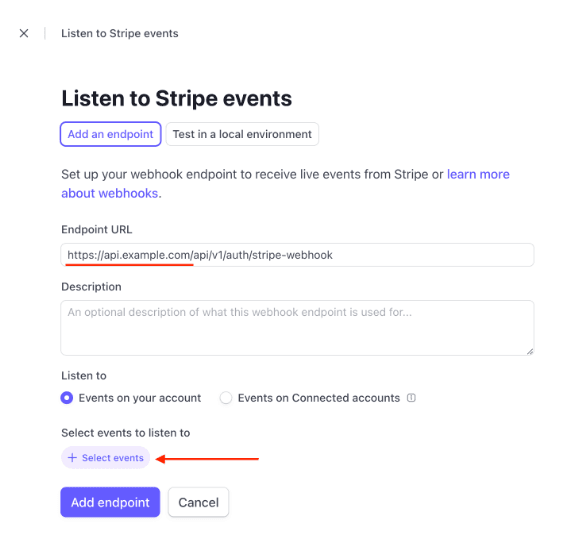
- Go back to your Stripe Dashboard and navigate to Developers → Webhooks in the left sidebar
- Click on Add endpoint button
- Paste the webhook URL you copied from the Super Admin portal into the Endpoint URL field
- In the Events to send section, select the following events:
customer.subscription.createdcustomer.subscription.updatedcustomer.subscription.deletedinvoice.payment_succeededinvoice.payment_failedcustomer.subscription.trial_will_endcheckout.session.completed
- Click on Add endpoint to save the webhook
- Once the webhook is created, click on the webhook endpoint you just created
- In the Signing secret section, click on Reveal or Click to reveal
- Copy the Signing secret (it starts with
whsec_)
Step 4: Complete Configuration and Enable Stripe
- Go back to your Super Admin portal Stripe configuration form
- Paste the Webhook Secret you copied from Stripe Dashboard into the Webhook Secret field
- Locate the Status toggle switch and Toggle it ON to enable the Stripe payment gateway
- Click on Save or Update to save your configuration
Make sure the toggle is ON (enabled) for Stripe payment gateway to be active. If the toggle is OFF, the payment gateway will not process payments.
Note: If you have already added a plan and you change anything in the payment gateway settings, it is your responsibility to ensure that all payment configurations and plans remain correct and functional. Always double-check your plans and payment settings after making changes.
Paystack
Paystack is optimized for African markets, supporting Nigerian Naira (NGN), Ghanaian Cedi (GHS), South African Rand (ZAR), Kenyan Shilling (KES), and other African currencies.
Step 1: Access Paystack Configuration
- Navigate to your Super Admin portal at
https://yourdomain.com/superadmin/dashboard/payment-gatewaysand log in with your Super Admin credentials - In the Super Admin dashboard, locate and click on Payment Gateways in the navigation menu
- Click on Paystack from the list of available payment gateways
- You will be presented with a form to configure Paystack credentials
Step 2: Get Paystack API Keys
-
Create a Paystack Account:
- If you don’t have a Paystack account, sign up at https://paystack.com
- Complete the account verification process as required for your country
-
Access API Keys:
- Log in to your Paystack Dashboard at https://dashboard.paystack.com
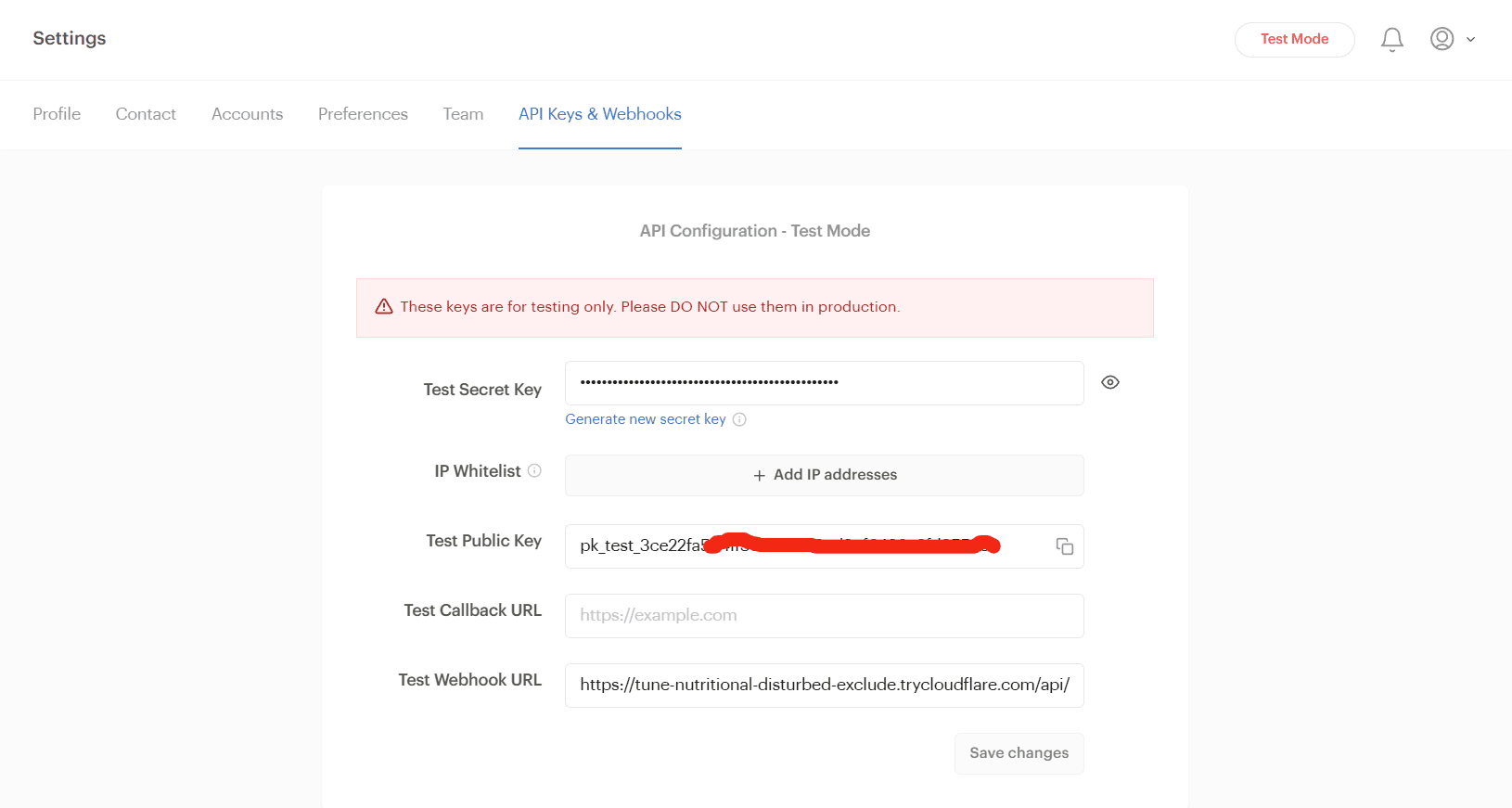
- Navigate to Settings → API Keys & Webhooks in the sidebar
- You will see two sets of keys: Secret Key and Public Key
- For testing, use the Test Secret Key and Test Public Key
- For production, use the Live Secret Key and Live Public Key
- Copy Your Keys:
- Public Key: Starts with
pk_test_(test) orpk_live_(live) - Secret Key: Starts with
sk_test_(test) orsk_live_(live) - Click on the eye icon or “Reveal” button to view the secret key
- Public Key: Starts with
Step 3: Configure Paystack Credentials in Super Admin
- In your Super Admin portal’s Paystack configuration form, paste your keys into:
- Public Key: Your Paystack Public Key
- Secret Key: Your Paystack Secret Key
- Webhook URL: Copy this for the next step (automatically generated in the form)
- Use Test Keys during development; switch to Live Keys when going to production
Step 4: Set Up Paystack Webhook
- Copy Webhook URL: From the Paystack configuration form, copy the Webhook URL (e.g.
https://api.yourdomain.com/api/v1/auth/paystack-webhook) - Configure in Paystack Dashboard:
- Go to Paystack Dashboard → Settings → API Keys & Webhooks
- Scroll to the Webhooks section
- Click Add Webhook URL or Add Webhook
- Paste the webhook URL and save
Step 5: Complete Configuration and Enable Paystack
- Go back to your Super Admin portal Paystack configuration form
- Locate the Status toggle switch and Toggle it ON to enable Paystack
- Click Save or Update to save your configuration
Make sure the toggle is ON (enabled) for Paystack payment gateway to be active. If the toggle is OFF, the payment gateway will not process payments.
Below version v2.0.0 (Legacy)
1.0 Stripe Credentials
- To configure subscriptions for the app, follow the mentioned steps & then get your stripe credentails - STRIPE_SECRET & STRIPE_WEBHOOK_SECRET as required.
1.1 Stripe Subscription Setup
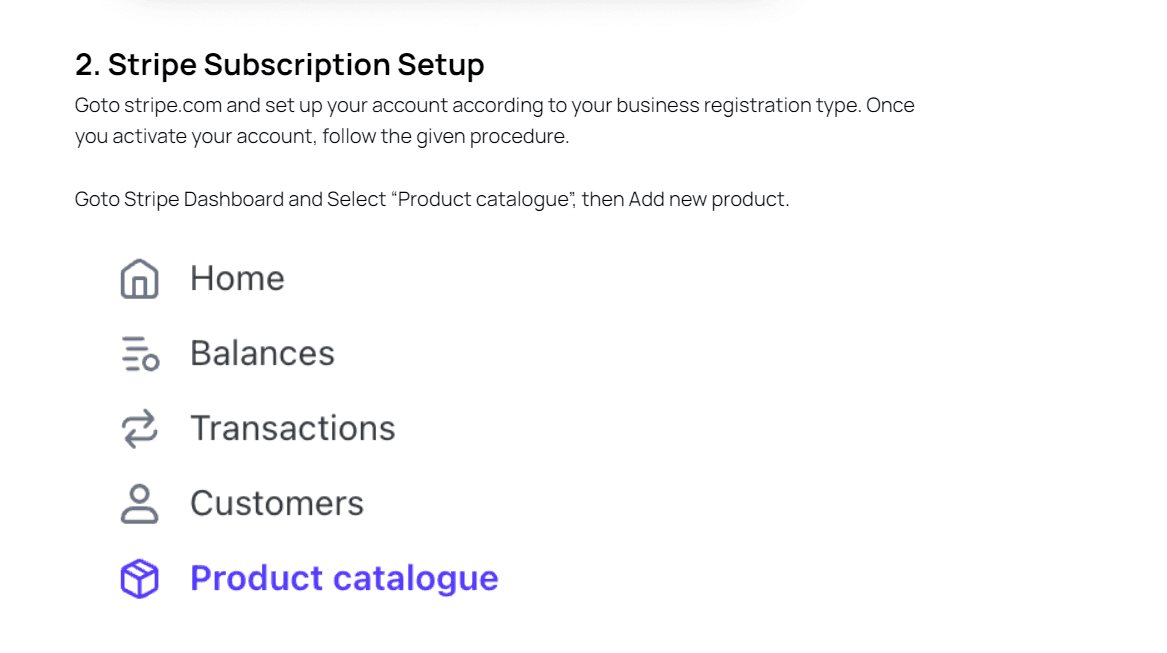
- Goto Stripe and set up your account according to your business registration type. Once you activate your account, follow the given procedure.
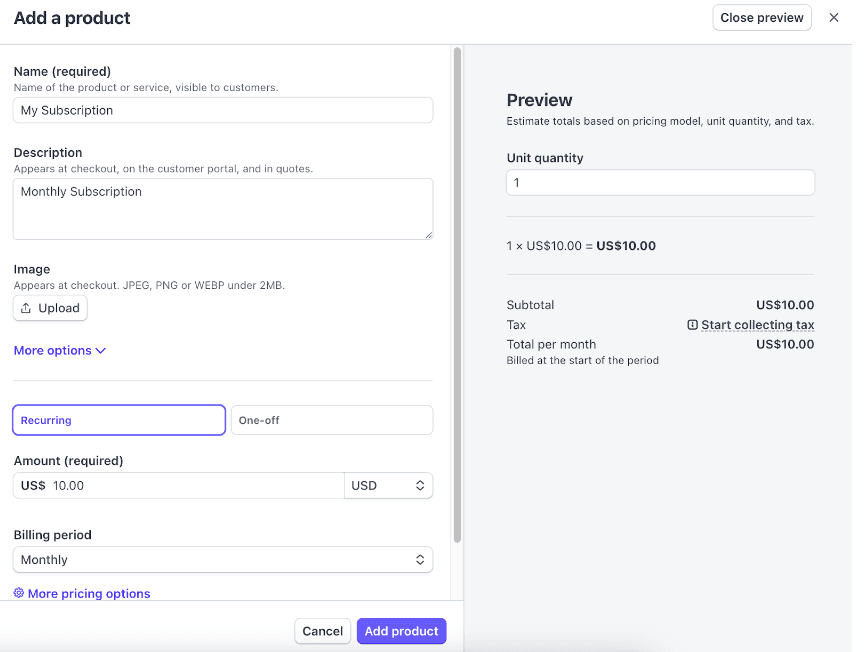
- Goto Stripe Dashboard and Select “Product catalogue”, then Add new product.
- Fill the details as per your business requirements.
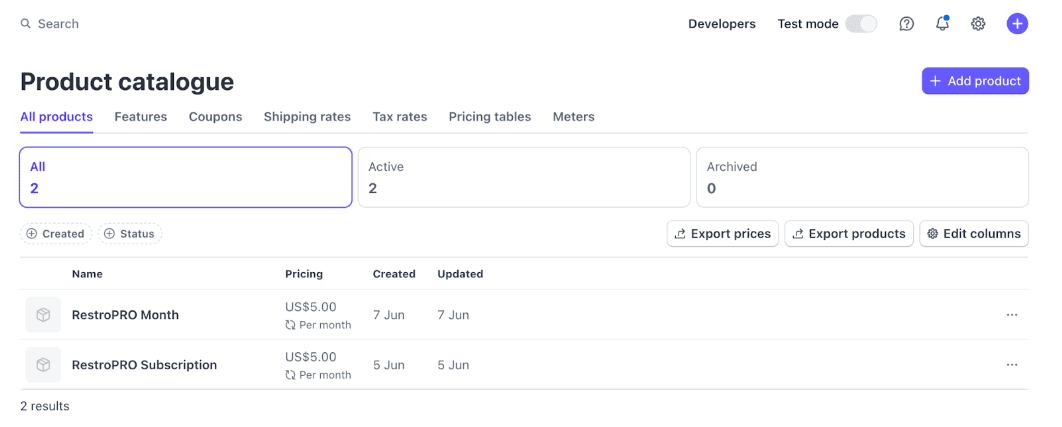
- Once you create the Subscription Product, you will see it like this.
- Now go back to Stripe Dashboard and open the developers page, you will get API keys from there. Look for a secret key, and copy it. This will be your
STRIPE_SECRET.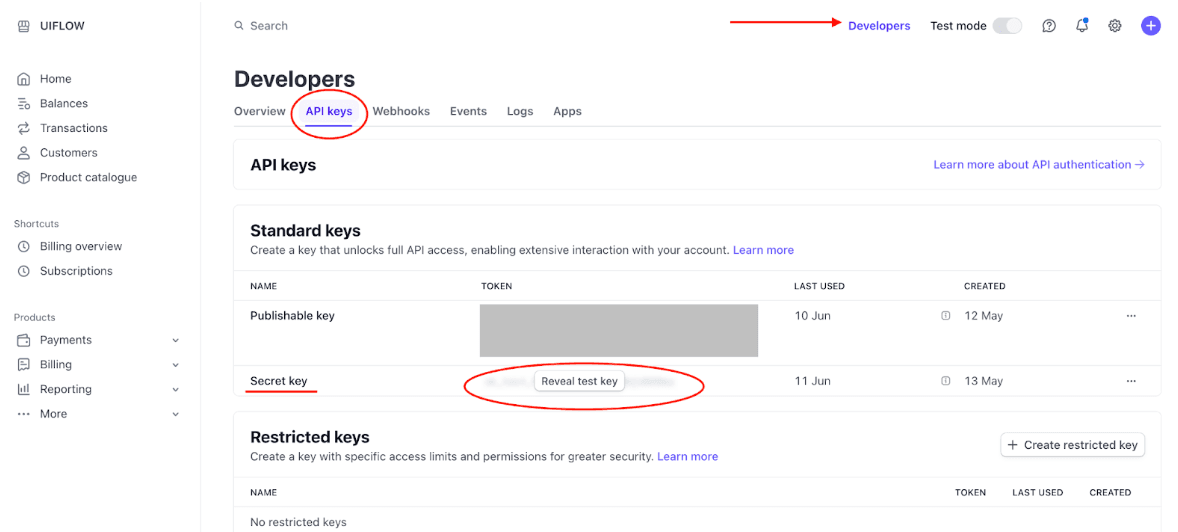
- Now we will set up the webhook. For that open Stripe Dashboard and goto developers page again. Goto Webhooks Tab, then click on Add endpoint.

- Then provide the webhook URL, this will be our backend route webhook handler, so we’re yet to setup the backend, so you just need to provide the url. For example if i’m setting Backend on domain “api.example.com” then the webhook URL will look like this.Webhook URL: https://api.example.com/api/v1/auth/stripe-webhook. Replace the domain, to your backend domain. After placing endpoint URL, click on the ‘select events to listen to’
- Look for the following events and select them.
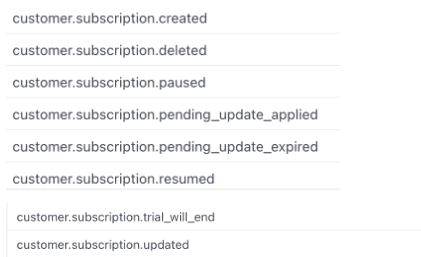
- Once you add it open the created webhook endpoint in Stripe Dashboard.
- Click on the ‘Reveal’ to copy the Webhook Signing Secret.

- Paste the copied secret in STRIPE_WEBHOOK_SECRET
STRIPE_SECRET=YOUR_STRIPE_SECRET
STRIPE_WEBHOOK_SECRET=YOUR_STRIPE_WEBHOOK_SECRET