Version 2.1.0
We’re excited to introduce Version 2.1.0, which brings Paystack payment gateway support to RestroPro SaaS. This update extends our payment gateway capabilities to better serve customers in African countries, providing a seamless and localized payment experience & New look of RestroPRO- Experience the New Mobile UI!
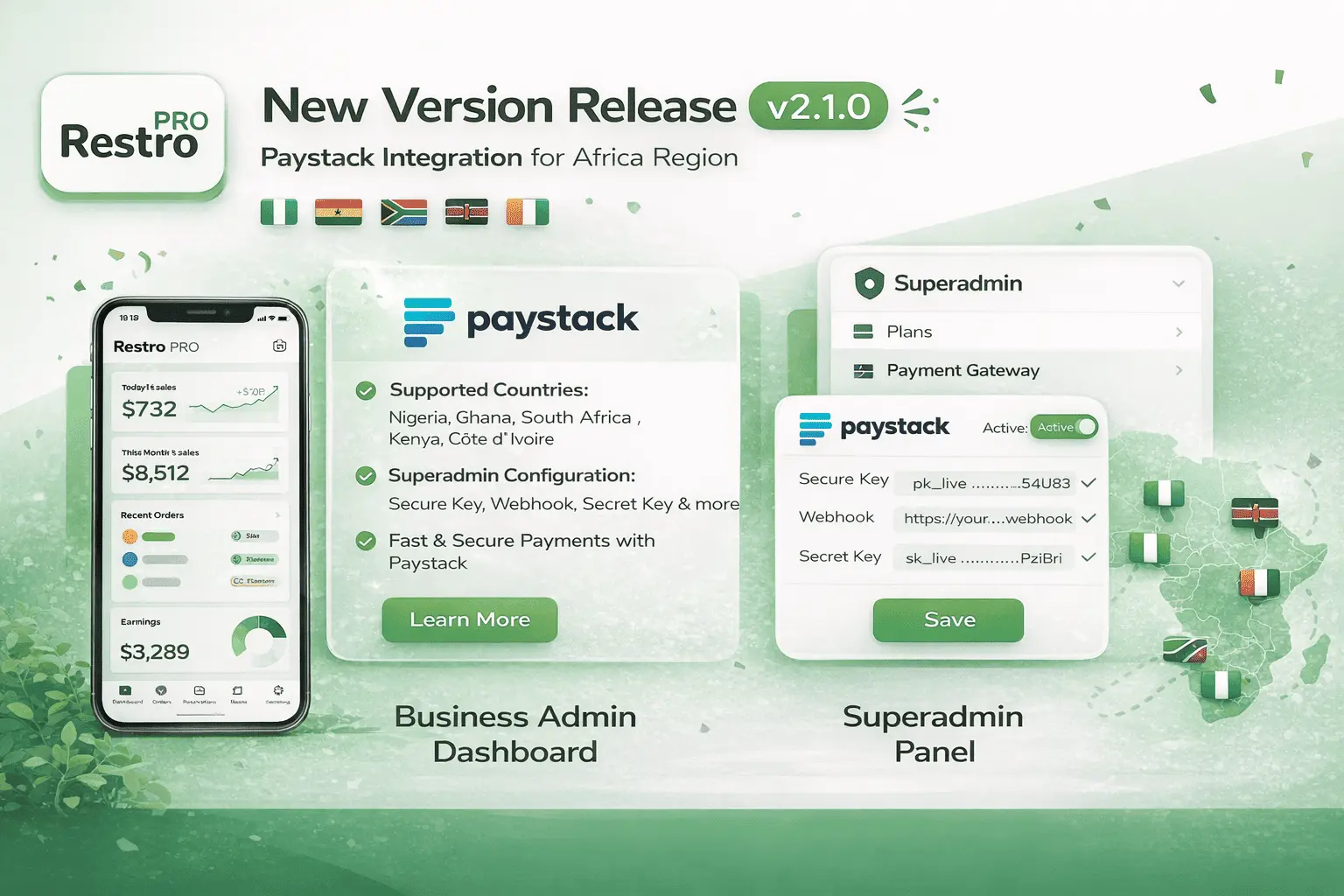
v2.1.0 (Release Date)
- ✅ Paystack payment gateway integration for African markets
- ✅ Support for Nigerian Naira (NGN), Ghanaian Cedi (GHS), South African Rand (ZAR), and other African currencies
- ✅ Seamless subscription management through Paystack
- ✅ Webhook support for real-time payment notifications
- ✅ Enhanced payment gateway configuration in Super Admin portal
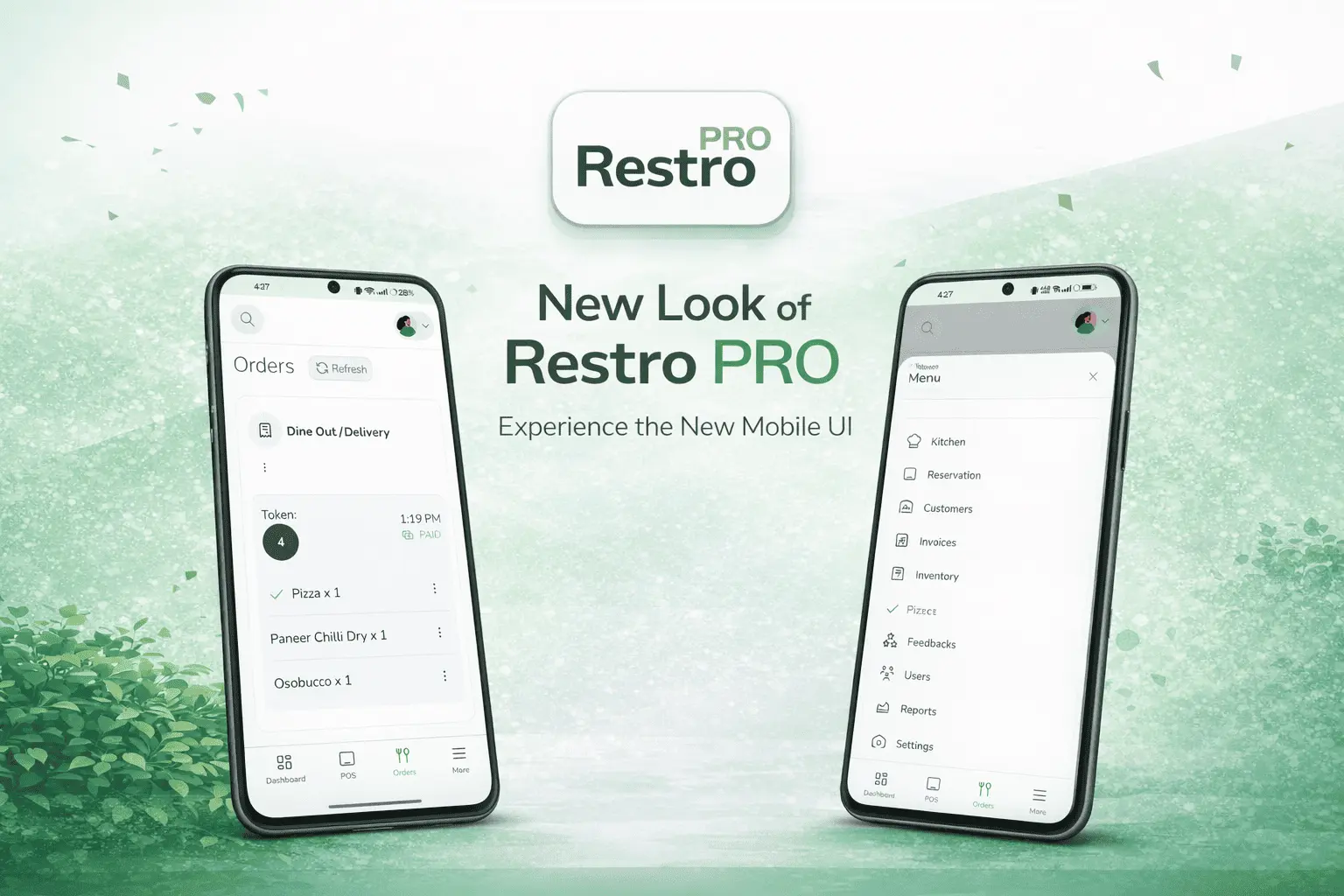
- ✅ Redesigned mobile bottom bar for Super Admin and Business Admin views for a cleaner mobile experience
Update Guide
Step 1: Update Database
Since the payment_gateways table was already created in v2.0.0, no new database tables are required for this update. However, if you’re upgrading from a version prior to v2.0.0, please ensure you have completed all database migrations from v2.0.0 first.
Verify existing tables:
Ensure the following tables exist (created in v2.0.0):
payment_gateways- For storing payment gateway credentialsplans- For managing subscription plansplan_prices- For managing plan pricing by country and currencytenants- With payment-related columnssubscription_history- With updated status enum
If any of these tables are missing, please refer to the v2.0.0 migration guide and complete those migrations first.
Step 2: Update Backend Code
- Replace the existing backend files with the latest version from the v2.1.0 release.
- Ensure all dependencies are installed by running:
npm install # or yarn install - Verify that Paystack SDK or API integration libraries are properly installed.
- Check your
.envfile for any new environment variables (if required by your backend implementation).
Step 3: Update Frontend Code
- Replace existing frontend code with the updated files from the v2_1_0 branch.
- Clear local storage/cache and rebuild the frontend for the changes to reflect.
- Verify that the Payment Gateways section in the superadmin panel now shows Paystack as an available option.
Step 4: Configure Paystack in Super Admin Portal
4.1: Access Paystack Configuration
- Navigate to your Super Admin portal at
https://yourdomain.com/superadmin/dashboard/payment-gateways - Log in with your Super Admin credentials
- In the Super Admin dashboard, locate and click on Payment Gateways in the navigation menu
- You should now see Paystack listed alongside other payment gateways (e.g., Stripe)
- Click on Paystack from the list of available payment gateways
- You will be presented with a form to configure Paystack credentials
4.2: Get Paystack API Keys
-
Create a Paystack Account:
- If you don’t have a Paystack account, sign up at https://paystack.com
- Complete the account verification process as required for your country
-
Access API Keys:
- Log in to your Paystack Dashboard at https://dashboard.paystack.com
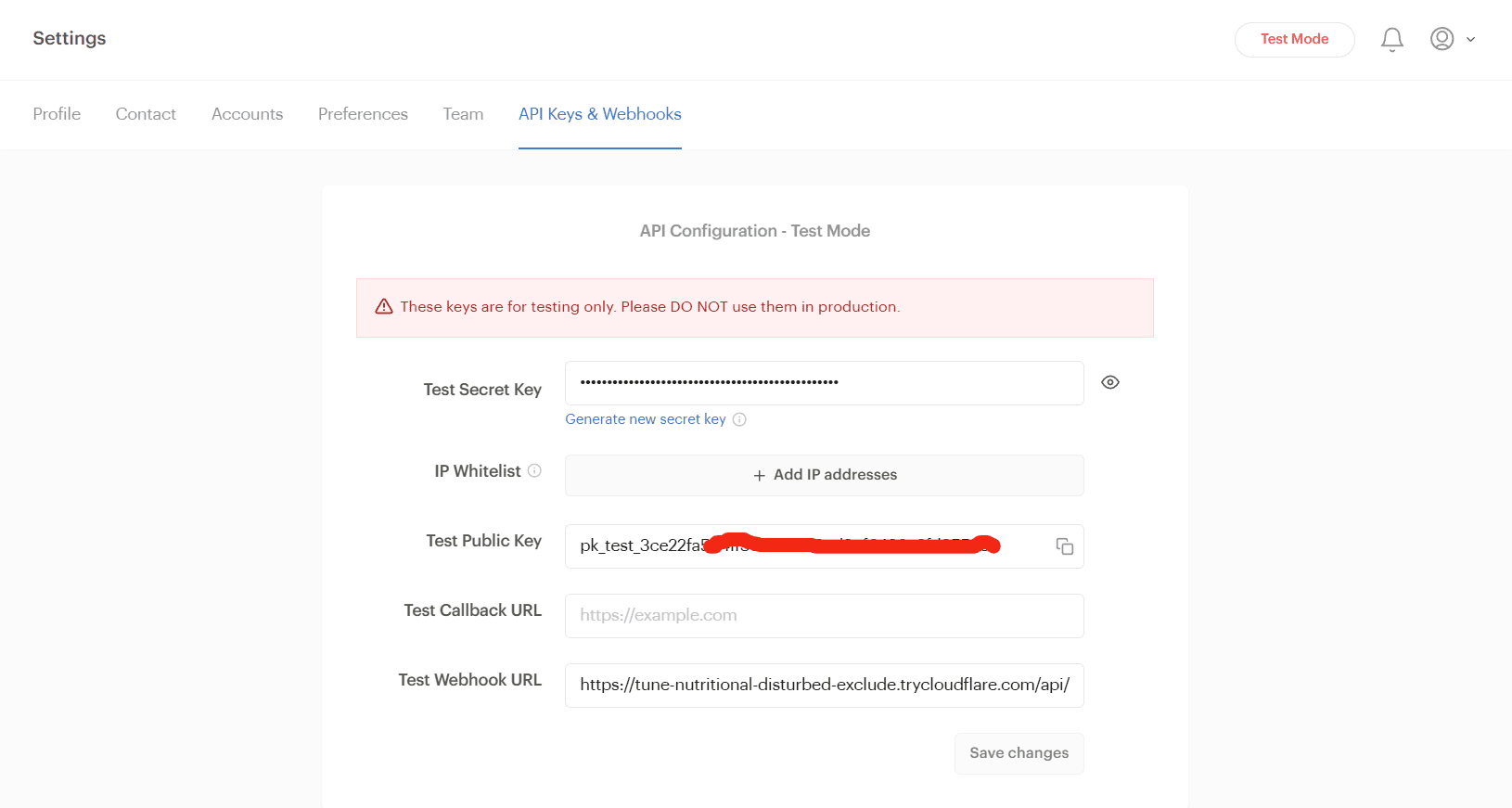
- Navigate to Settings → API Keys & Webhooks in the sidebar
- You will see two sets of keys: Secret Key and Public Key
- For testing, use the Test Secret Key and Test Public Key
- For production, use the Live Secret Key and Live Public Key
- Copy Your Keys:
- Public Key: Starts with
pk_test_(test) orpk_live_(live) - Secret Key: Starts with
sk_test_(test) orsk_live_(live) - Click on the eye icon or “Reveal” button to view the secret key
- Public Key: Starts with
4.3: Configure Paystack Credentials in Super Admin
-
In your Super Admin portal’s Paystack configuration form, you will see fields for:
- Public Key: Paste your Paystack Public Key here
- Secret Key: Paste your Paystack Secret Key here
- Webhook URL: This will be automatically generated (copy this for the next step)
-
Important: Make sure you’re using the correct keys:
- Use Test Keys during development and testing
- Switch to Live Keys only when you’re ready for production
4.4: Set Up Paystack Webhook
-
Copy Webhook URL:
- From the Paystack configuration form in your Super Admin portal, copy the Webhook URL
- It should look like:
https://api.yourdomain.com/api/v1/auth/paystack-webhook
-
Configure Webhook in Paystack Dashboard:
- Go back to your Paystack Dashboard
- Navigate to Settings → API Keys & Webhooks
- Scroll down to the Webhooks section
- Click on Add Webhook URL or Add Webhook
- Paste the webhook URL you copied from the Super Admin portal
-
Save and Get Webhook Secret:
- Click Save or Add Webhook to create the webhook endpoint
4.5: Complete Paystack Configuration
-
Enable Paystack:
- Locate the Status toggle switch in the configuration form
- Toggle it ON to enable the Paystack payment gateway
- This is crucial - the gateway will not process payments if the toggle is OFF
-
Save Configuration:
- Click on Save or Update to save your Paystack configuration
- You should see a success message confirming the configuration is saved
4.6: Create Plans with Paystack
-
Navigate to Plans Section:
- Go to Plans in your Super Admin portal navigation
- Click on Add New Plan or edit an existing plan
-
Configure Plan for Paystack:
- Set the Payment Gateway field to Paystack
- Enter the Paystack Product ID (this should match the product ID in your Paystack dashboard)
- Configure plan details, pricing, and features as needed
-
Set Plan Prices:
- Add pricing for African countries and currencies:
- Nigeria (NGN) - Nigerian Naira
- Ghana (GHS) - Ghanaian Cedi
- South Africa (ZAR) - South African Rand
- Kenya (KES) - Kenyan Shilling
- And other supported African countries
- Set both Monthly and Yearly pricing as needed
- Mark at least one price as Default
- If your account is registered in that country, the regional pricing plan will be added. Otherwise, it will not.
- Add pricing for African countries and currencies:
-
Save the Plan:
- Click Save to create or update the plan
- The plan will now be available for customers using Paystack
Feature Usage Notes
-
Paystack Integration: Paystack is now fully integrated and can be used alongside other payment gateways like Stripe. You can enable multiple gateways simultaneously.
-
African Market Support: Paystack is specifically optimized for African markets and supports local payment methods, currencies, and banking systems.
-
Currency Support: Paystack supports multiple African currencies including NGN, GHS, ZAR, KES, and more. Configure plan prices accordingly for each country.
-
Webhook Events: Paystack webhooks ensure real-time synchronization of subscription status, payment success/failure, and invoice events with your RestroPro SaaS system.
-
Testing: Always test with Paystack test keys first before switching to live keys. Paystack provides a test mode that simulates various payment scenarios.
-
Plan Management: When creating plans for Paystack, ensure the
payment_gateway_product_idmatches the product ID in your Paystack dashboard. This links your RestroPro plans to Paystack products. -
Multi-Gateway Support: You can have both Stripe and Paystack (or other gateways) enabled simultaneously. Customers can choose their preferred payment method during checkout.
-
Mobile Bottom Bar Redesign: The mobile bottom bar is redesigned for both Super Admin and Business Admin dashboards. No extra setup is needed—just update to v2.1.0, rebuild the frontend, and verify the new navigation layout on mobile screens.
Supported African Countries
Paystack is available in the following countries:
- 🇳🇬 Nigeria (NGN)
- 🇬🇭 Ghana (GHS)
- 🇿🇦 South Africa (ZAR)
- 🇰🇪 Kenya (KES)
- Côte d’Ivoire (XOF)
- And other African countries supported by Paystack
When configuring plan prices, make sure to add pricing for the countries where you want to offer Paystack as a payment option.
Important Notes
Status Toggle: Always ensure the Paystack status toggle is ON (enabled) in the Super Admin portal. If the toggle is OFF, the payment gateway will not process payments, even if all credentials are correctly configured.
Key Management: Keep your Paystack secret keys secure and never expose them in frontend code or public repositories. Always use environment variables for sensitive credentials.
Webhook Security: The webhook secret is essential for verifying that webhook requests are coming from Paystack. Never share or expose your webhook secret.
Testing: Before going live, thoroughly test the Paystack integration using test keys. Test various scenarios including successful payments, failed payments, and subscription updates.
Plan Updates: If you change any payment gateway settings after creating plans, verify that all plans and payment configurations remain correct and functional. Always double-check your plans and payment settings after making changes.
Migration from v2.0.0: If you’re upgrading from v2.0.0, the database structure is already in place. You only need to update the backend and frontend code, then configure Paystack in the Super Admin portal.
Multiple Gateways: You can run Stripe and Paystack simultaneously. This allows you to serve customers in different regions with their preferred payment method.